

Table of Contents
Your Ultimate Guide to Navigating the EverDome Metaverse Spaces
Are you excited to explore EverDome’s vibrant metaverse? Whether you’re gearing up for an AMA hosted by your favorite project or simply seeking to explore the various spaces, this guide is tailored just for you! Let’s dive into how to seamlessly navigate your way through EverDome.

🎮 Step 1: Getting Started
To embark on your journey, you’ll first need to launch EverDome in your browser. Here’s how to get started:
Download the Launcher
Click on the Launcher tab located at the top right corner of the page.- A new page will appear. Click on Download Launcher.
- A pop-up will show the progress of your download. Once complete, hit Close.
- Access Your File
Open the folder where your downloads are stored, locate the downloaded file, and open it.
💻 Step 2: Install the Launcher
Once the launcher installation window appears:
- Follow the on-screen instructions to install.
- After installation, open the launcher to see the landing page.
Now, you will need to download the next file. Note that this process may take a few minutes, and you might notice the loading bar resetting multiple times. Be patient; it’s all part of the process!
🛠 System Requirements
Ensure your computer meets these specifications for the smoothest experience:
List of required specs here
✨ Step 3: Customize Your Avatar
Now that your launcher is set up:

- Personalize Your Avatar: Choose your preferred avatar design.
- Pick a Player Name: Your player name can have up to 20 characters—get creative!
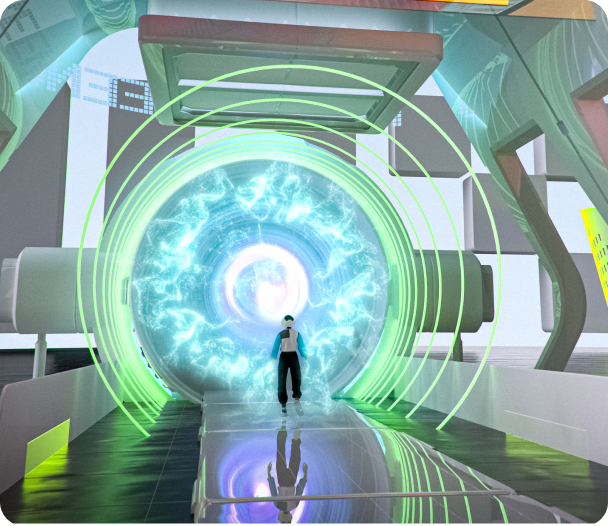
Once you’re done, hit Save and prepare to enter the metaverse!
🚀 Step 4: Entering the Metaverse
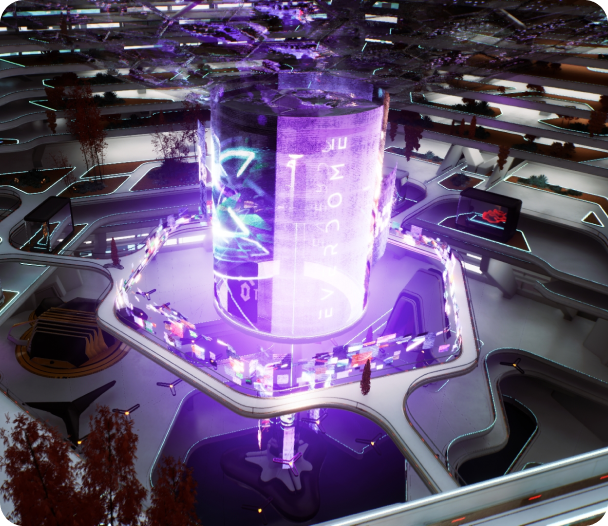
- Click on Enter the Metaverse.
- Familiarize yourself with the on-screen keyboard layout and various gestures.
- The basic movements include interact, run, move, chat, hold to talk, and jump—all crucial for your immersive experience!
📜 Main Menu Options
You’ll find yourself on the main menu where you have several options:
- Enter Mars HQ
- Join a Specific Space
- Select a Surprise Space
You can also access the Options Tab to adjust graphics and sound settings.
📦 Step 5: Interacting with the Environment
While inside any space, you can engage with various features:
- Press the E key on your keyboard to interact with items.
- Remember the keys for different gestures, and feel free to type or voice chat as needed!
🛗 Exploring Mars HQ
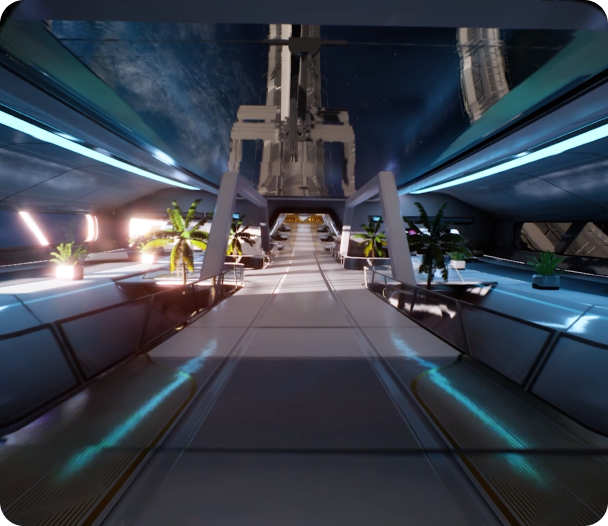
Don’t forget to ride the elevator to the 8th Floor and check out the new Mars Theater!
🗺 Discovering New Spaces
If you’re uncertain about which space to explore, you have a few options:
Check Custom Built Spaces: Explore all the various spaces our team has designed, including partnered spaces.
- Join a Space with Access Codes: When you find an intriguing space, simply copy the access code, return to the main menu of the launcher, select Enter Space, and enter the event code.
🎲 Surprise Us!
Feeling adventurous? Select Surprise Me from the main menu, and you’ll be randomly placed in a new space to explore the unknown!
🌌 Conclusion
And there you have it! Your essential guide to navigating Mars HQ and other vibrant spaces within the EverDome metaverse. Happy exploring, and enjoy your journey into this immersive community!
Feel free to share this guide with fellow adventurers who are eager to jump into EverDome! If you have any questions or need further assistance, don’t hesitate to reach out to the community. Enjoy your adventure in the EverDome metaverse!




🫵my favourite Metaverse
Top metaverse 🎉
1$ soon baby! 🚀🚀🚀
No in game sounds or just the video? No sound of the lift doors opening etc.
No, thanks
Can’t have mass adoption if everybody can’t use it! 😢